The era of free AI is over. But you can still choose between paying for GitHub Copilot AI Credits, paying for API consumption in Azure AI Foundry, or running local LLMs (large language models) on your own hardware.
This article explains the alternatives to just writing a blank check to Microsoft.
Background
If you're using a personal subscription to Codex (ChatGPT) or Claude (Anthropic), you probably don't need to worry about this stuff. You have pretty relaxed quotas, and token cost isn't a big deal.
But if you're using a business subscription to GitHub Copilot, that consumption can get pretty expensive when Microsoft invoices it roughly at cost!
And that's why you might want to look into some alternatives - such as BYOK (bring your own key) or even running your own local LLMs (large language models) on your own hardware.
But how do you set these up in VS Code so that GitHub Copilot can use them? Well, it's actually pretty easy.
Set up BYOK
This isn't a complete tutorial, so I'll just assume you already have your Azure AI Foundry instance set up. If you're using the Foundry Toolkit extension in VS Code, you don't even need to leave VS Code to set up your model deployments!
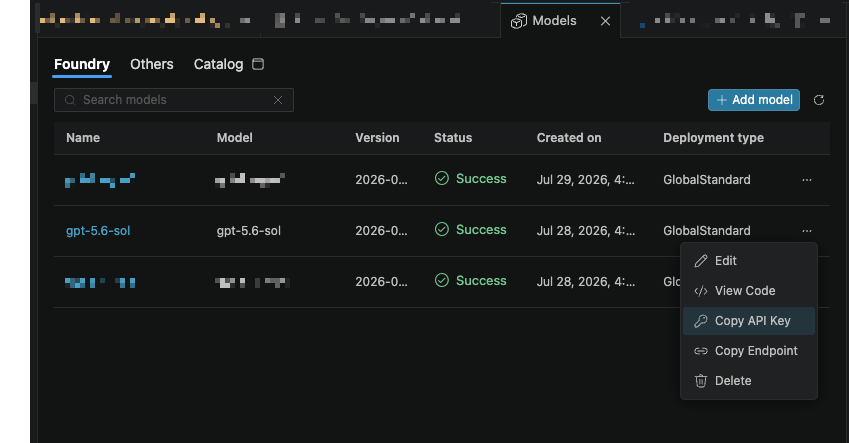
That's pretty neat (when it works). But how do you use these models in GitHub Copilot?
Configure the models for GitHub Copilot Chat in VS Code
We need to set GitHub Copilot (Chat) to use our BYOK or local LLMs.
To do that, we need to edit the chatLanguageModels.json file.
On Windows, you can easily try (and fail at) finding it by searching for chatLanguageModels.json. The main takeaway from that exercise is that Windows doesn't have a functioning search service.
On a Mac, it's located at ~/Library/Application Support/Code/User/chatLanguageModels.json. If it doesn't exist, you can create it yourself.
This file configures the model picker in GitHub Copilot Chat in VS Code:
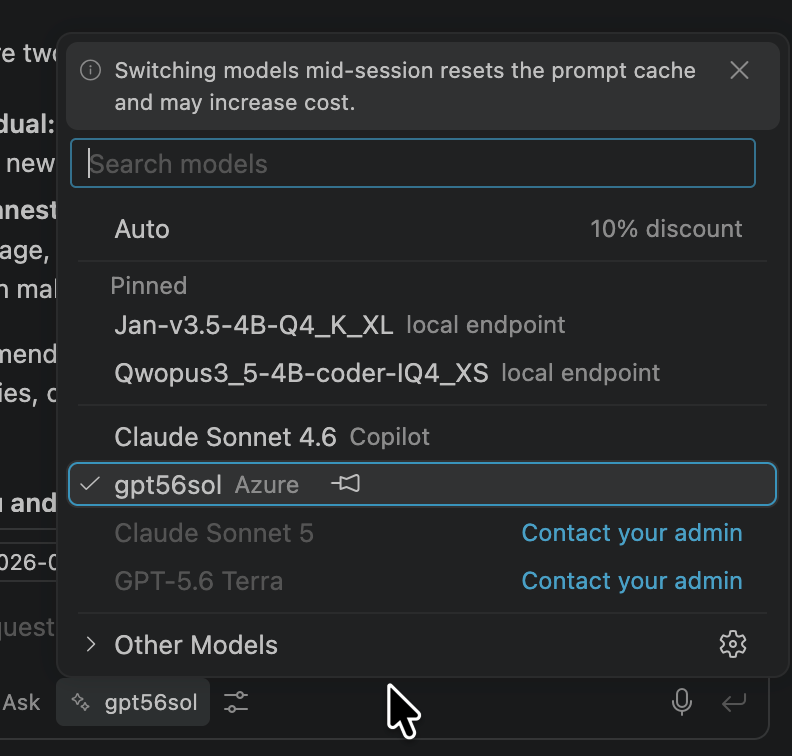
And if you click the gear icon, you can get to this only slightly awkward UI:
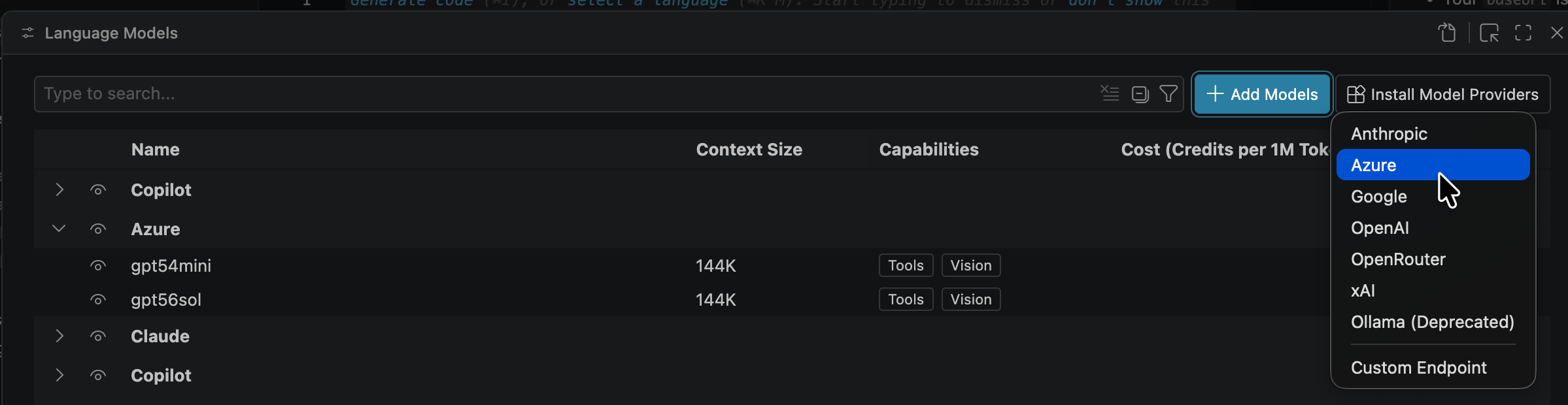
But why would you want to do that, when you can just edit the JSON file directly?
Anyway, below I set up two providers and four models: two from Azure AI Foundry and two local LLMs running on my own hardware.
[
	{
		"name": "Azure",
		"vendor": "azure",
		"apiKey": "${input:chat.lm.secret.-5effcdf4}",
		"models": [
			{
				"id": "gpt-5.4-mini",
				"name": "gpt54mini",
				"url": "https://your-openai-foundry-endpoint.services.ai.azure.com/openai/v1/responses",
				"toolCalling": true,
				"vision": true,
				"maxInputTokens": 128000,
				"maxOutputTokens": 16000
			},
			{
				"id": "gpt-5.6-sol",
				"name": "gpt56sol",
				"url": "https://your-openai-foundry-endpoint.services.ai.azure.com/openai/v1/responses",
				"toolCalling": true,
				"vision": true,
				"maxInputTokens": 128000,
				"maxOutputTokens": 16000
			}
		]
	},
	{
		"name": "local endpoint",
		"vendor": "customendpoint",
		"models": [
			{
				"id": "Jan-v3.5-4B-Q4_K_XL",
				"name": "Jan-v3.5-4B-Q4_K_XL",
				"url": "http://127.0.0.1:1337/v1",
				"toolCalling": true,
				"vision": false,
				"maxInputTokens": 262144,
				"maxOutputTokens": 131072
			},
			{
				"id": "Qwopus3_5-4B-coder-IQ4_XS",
				"name": "Qwopus3_5-4B-coder-IQ4_XS",
				"url": "http://127.0.0.1:1337/v1",
				"toolCalling": true,
				"vision": false,
				"maxInputTokens": 262144,
				"maxOutputTokens": 131072
			}
		]
	}
]
The token limits for the GPT models are not correct. Figure them out if you want to copy and paste from my config. ;)
The LLMs in Azure are deployed with Azure AI Foundry using highly advanced methodology called "ClickOps". They are also available in the "Microsoft Foundry via Foundry Toolkit" provider - when the extension actually works. The whole reason I had them manually set up was the extension failing to load, and I couldn't be arsed to figure out what went wrong.
The ones running on my own hardware are lightweight Coder LLMs, running in llama.cpp. Nowhere near as capable as the Azure Foundry models, but they do work. For the most part.
On an unrelated note, it's mind-boggling how well a macbook with 0 gigabytes of free RAM can run after additionally loading 10-11 gigabytes of vectorized tokens into RAM...
Use BYOK or local LLMs in GitHub Copilot CLI
I'll save you from burning down another acre of rainforest down when you ask Copilot how to use Azure AI Foundry BYOK or your local models in the CLI. It really doesn't seem to have an idea.
And I've written long enough already — I started ranting about Copilot hallucinations and the lack of documentation, but I decided to spare you, my dear reader, from that. That doesn't mean I didn't spend the time typing, though. I did. And I spent time cursing Copilot for its never-ending hallucinations.
But I digress.
The real answer is to use environment variables — and if you want multiple configurations, set up profiles, scoped variables, or whatnot in your shell of choice.
Comments
No comments yet.