Chrome crashing on startup on mac OS? Easy fix!
This article explains how to fix it when Google Chrome decides to start crashing immediately on startup. Chrome is seriously starting to feel like the Internet Explorer of the 2020s sometimes - yet, somehow, I still keep using it.
Background
I was surprised to find out that there are a lot of guides for this issue online already. Many enough, that Copilot and ChatGPT and whatnot all are able to give the exact same useless information - every single one of the guides falls under one of 2 categories:
- "Open Chrome and go to chrome:// ... " or "Open Chrome and click Settings.." -> And how would I do that if Chrome crashes when I click on it??
- "Remove Chrome and start from the scratch" -> ... and what if I don't want to start from the scratch? Really, just destroy everything? I was working on something before Chrome decided it wasn't important and crashed!
Well, and then there are the ones that say "This is an issue with Google Chrome, you should use Safari." And the even worse ones that say "If Chrome crashes even in safe mode / immediately, it's a problem with something else and you need to disable/uninstall your apps/login items one-by-one to find the culprit."
Not only are they wrong, but also - ain't nobody got time for that!
Problem
Any time you open Chrome, it just instantly crashes. No matter how many times you try, it keeps closing itself immediately when on starting.
Reason
Google Chrome's current session state got randomly corrupted. I've had this happen to me on Windows pretty much constantly, but unlike on macOS, Chrome on Windows somehow always recovered after you turned it off and on again.
On my Mac, Chrome crashes, then notices it crashed and no matter which option I select - restart, ignore, recover, whatever - it'll just crash again.
There's no time to get to settings, no way to tweak anything - it'll just crash.
Solution
This is straightforward if your symptoms match mine.
Step 1: Quit Chrome
We're going to operate on its internals a bit, and it's better that it isn't awake to notice what we're doing.
Step 2: Open Chrome's Application Data folder using Finder
This is a good time to take a backup of your configuration, even if it doesn't quite work.
Navigate to ~/Library/Application Support/Google/Chrome (Command + Shift + G in Finder), and make note of folders called "Default" and "Profile X" (where X is a number).
Copy them to a safe place.
Step 3: Figure out which profile causes the issue
If you have more than one profile, start removing the offending profiles and restarting Chrome to see when it starts to work again.
According to my experience, "Default" is the most likely culprit - but I'll add this step just in case it's another profile that's giving you trouble.
Step 4: Remove offending folders
These are essentially cache folders, but they might still break your profile. Remove them:
- Session Storage
- Local Storage
There's a good chance this already helps. If Chrome still crashes, continue by removing the following:
- Sessions
- optimization_guide_hint_cache_store
- File System
- Shared Dictionary
- Service Worker
- Code Cache
- image_cache
And the following file:
- History
... and eventually, your browser should be back in working condition!
Step 5: Restore your tabs
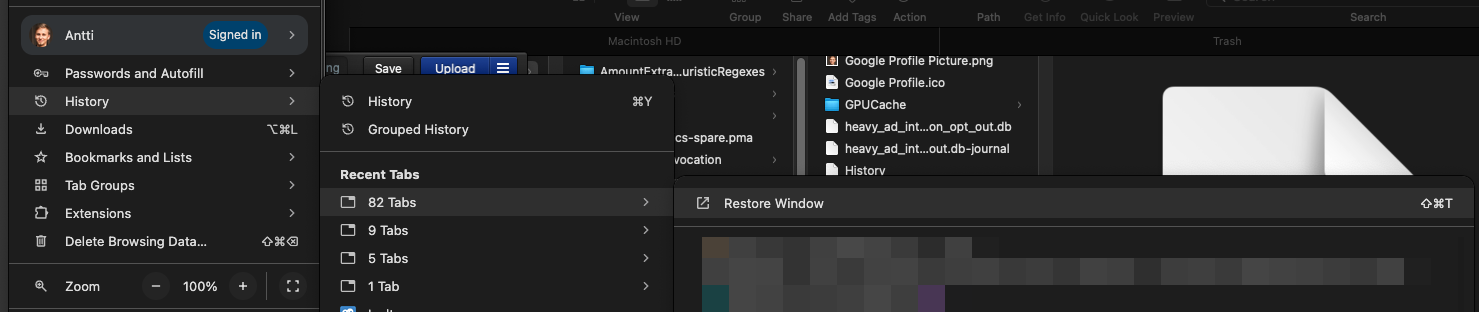
Now you should be able to get Chrome back up and running again - and you can restore your tabs from "History". Like below:
BONUS: How to avoid this in the future?
Do not keep an extreme number of tabs open in one profile. Session recovery gets less reliable as state size grows.
Bonus solution
Create more profiles and hide your tabs there, so Google doesn't realize you have them :)
Quick summary
When Chrome crashes immediately on macOS, the most reliable fix is to back up your profile and remove corrupted session and cache folders from the affected profile. Once Chrome opens again, restore tabs from History and reduce tab overload per profile to avoid repeat corruption.
Comments
No comments yet.