This article explains how I fixed an Azure CLI authentication error that stopped a Bicep what-if operation (and would have stopped the actual update too).
It boiled down to this: Azure told me I needed MFA, but I literally just had interactively signed in to az cli through Microsoft Authenticator since I already had it configured.
Naturally, I expected those two things to be compatible. But alas, when would things ever be so simple in the Azurelands...
Background
So there I was, preparing an Azure infrastructure deployment on my Mac. Nothing particularly exotic: Bicep templates, a parameter file, and a what-if before applying the changes.
You know. Trying to be a good citizen and at least previewing my vibe-coded bicep files before YOLOing them to Azure.
Signing in worked. Azure CLI showed the correct tenant and subscription. I could list my subscriptions, check my account details, and generally interact with Azure as expected.
But when I politely asked Azure Resource Manager what my deployment would change (what-if), it refused to proceed.
Not because the template was invalid. Or because a resource name was already taken.
Because, apparently, I had not authenticated through MFA.
Problem
The command looked roughly like this:
az deployment group what-if --resource-group "<RESOURCE_GROUP>" --template-file infra/main.bicep --parameters infra/main.test.bicepparam
And Azure returned this rather lengthy explanation:
NotSpecified - Resource '<RESOURCE_NAME>' was disallowed by Azure: You are receiving this error because you tried to create, update or delete Azure resources without authenticating through MFA. User accounts must be authenticated through MFA to manage your resources. To resolve this error, go to https://aka.ms/MFAforAzure.
Which is a bit confusing when you already have Microsoft Authenticator set up, and have literally JUST authenticated through it to even get to run the command!
Running the command with debug output added another distraction:
AttributeError: 'CLIError' object has no attribute 'inner_exception'
Lovely. An authentication problem, now with bonus Python.
However, that second error happened after Azure had already returned the MFA rejection. Azure CLI then encountered another problem while handling the original error - essentially a red herring.
And despite what the message suggested, I was not deploying anything yet - this was a what-if operation. But it did still reach an Azure Resource Manager validation path that rejected my authentication.
Why does this happen?
There are two separate things to keep in mind.
Having an MFA method registered is not the same as satisfying MFA for a request
Microsoft is enforcing MFA for Azure management operations. Its published Phase 2 rollout started on October 1, 2025, and covers Azure CLI, Azure PowerShell, infrastructure-as-code tools, and control-plane APIs for create, update, and delete operations.
That means a successful az login or subscription listing doesn't prove that your session satisfies the MFA requirements for the operation you are attempting.
The account needs an allowed authentication method, and the sign-in used for the operation needs to satisfy the applicable requirements. Tenant policies can also restrict which methods are accepted.
In my case, the account had a password and Microsoft Authenticator configured, but no phone number or passkey. Registering an additional method from those options, followed by clearing the cached logins and signing in again, resolved the issue.
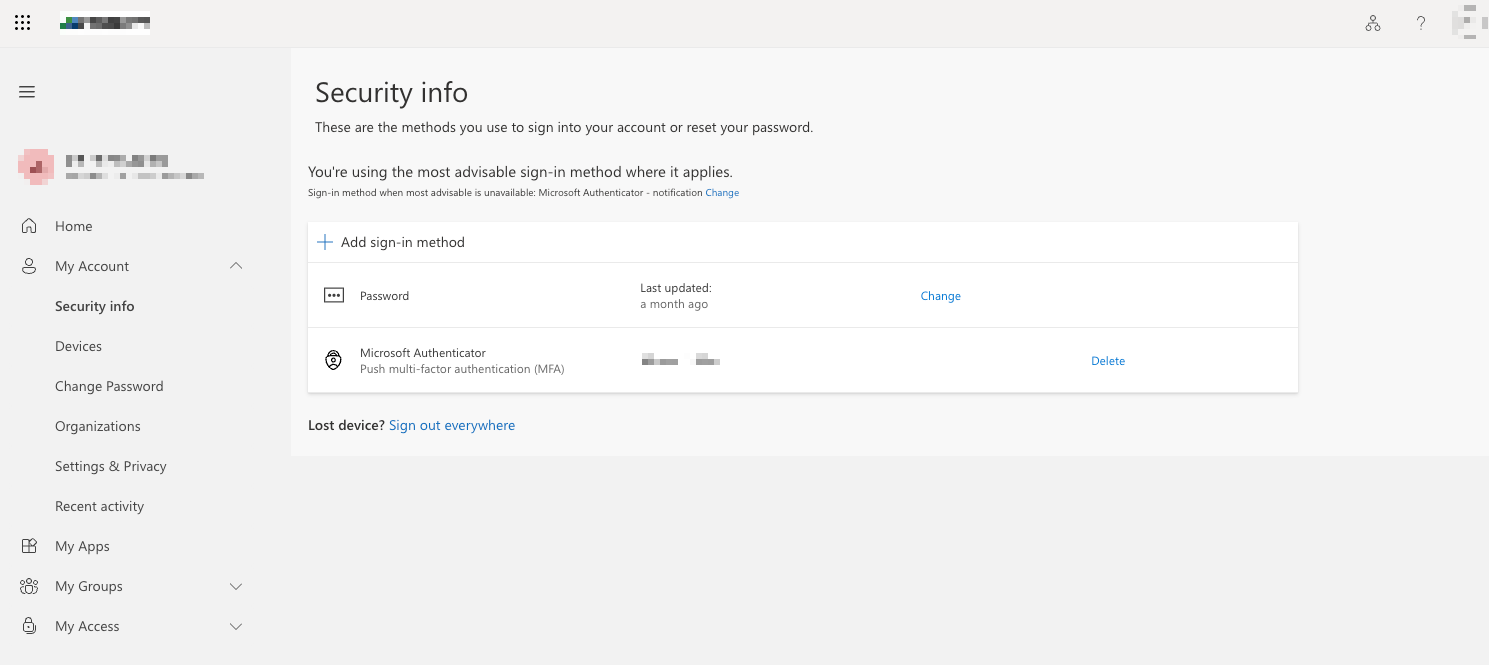
Note, that this does not mean Azure universally requires a phone number or passkey in addition to Microsoft Authenticator. I suspect this particular case was a combination of the changes from Microsoft and the existing tenant policies.
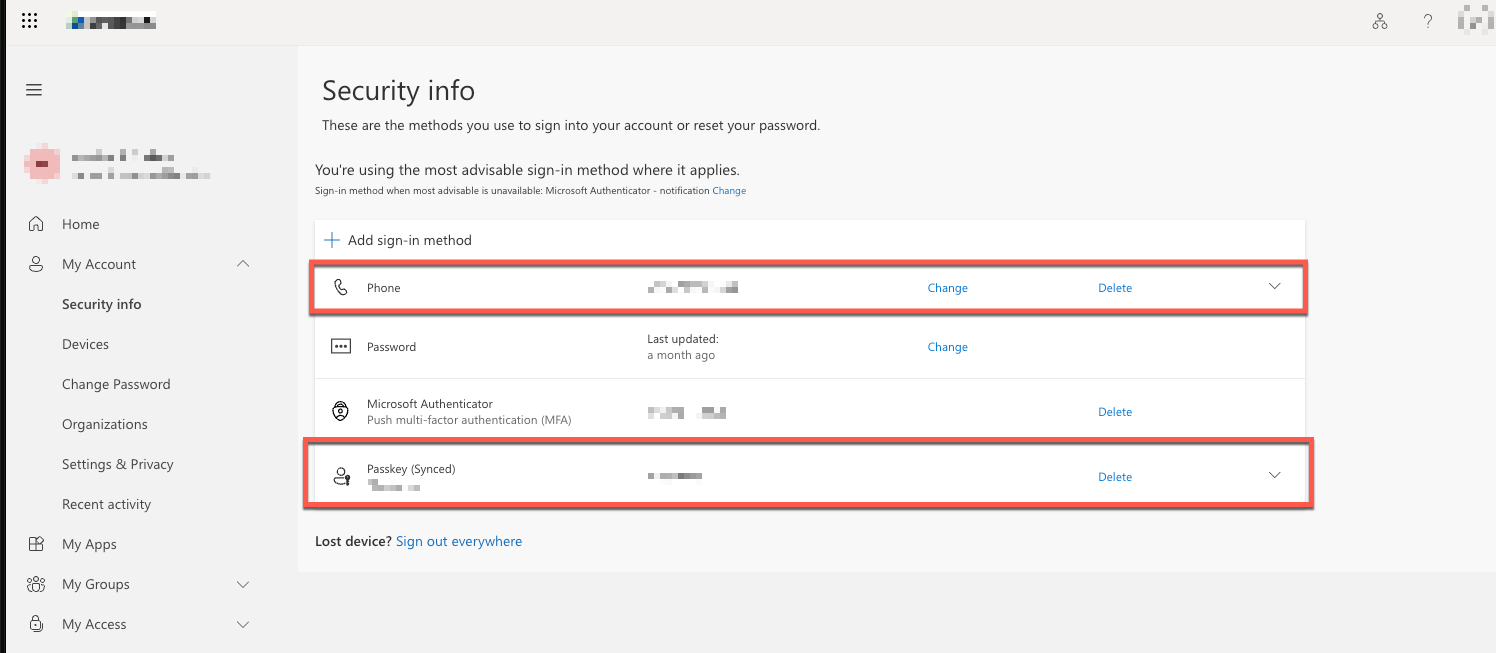
The sequence above is the fix that worked for my account, but since I added them at the same time, I'm guessing the passkey was actually extra, and it was the phone that was really required by the customer tenant.
The existing login session does not fix itself when you add a method
Azure CLI caches authentication state using MSAL. Updating your account's security information does not, by itself, replace the tokens already cached on your computer.
If you're on Windows instead of mac and your cached credentials fail with a different Windows-specific error, see How to fix "Decryption failed: Key not valid for use in specified state" in Azure CLI?
In my case, adding the method was not enough. I also had to clear the existing logins and authenticate again.
So there were two parts to the working solution: update the account, clear your cached logins, then start a fresh CLI session.
Solution
Here's the sequence that got me unstuck.
1. Check your account's security information
Open My Sign-Ins - Security info.
Make sure you are looking at the account and organization you actually use for the deployment. This matters particularly if, like many consultants, your browser has enough Microsoft identities cached to populate a small directory.
And especially so if you're a mac user with some sort of unholy SSO implementation, that'll keep overriding your per-profile Chrome identities...
Anyway, back to the security info screen! Use Add sign-in method to register an additional method permitted (and in reality, required) by your organization's policies.
For my account, the missing piece was an additional method: a phone number (or passkey, but probably the phone).
Where supported, prefer a passkey for phishing-resistant authentication. A phone method is not suitable for satisfying a policy that specifically requires phishing-resistant MFA.
2. Clear the Azure CLI login state
First, close other terminals or tools actively using the same Azure CLI profile.
Then run:
az logout
az account clear
These commands affect the current Azure CLI profile, not just the subscription you were working with. Expect to sign in again for other accounts.
If you still need to remove the local MSAL cache, the following commands target the known cache files on macOS (and I assume, on Linux as well):
rm -f "${AZURE_CONFIG_DIR:-$HOME/.azure}/msal_token_cache.json" "${AZURE_CONFIG_DIR:-$HOME/.azure}/msal_token_cache.bin" "${AZURE_CONFIG_DIR:-$HOME/.azure}/msal_http_cache.bin"
This respects a custom AZURE_CONFIG_DIR and avoids deleting the entire Azure CLI configuration directory, including extensions and unrelated settings.
Note, that these are shell commands for macOS and Linux, not PowerShell instructions for Windows.
3. Sign in to the correct tenant again
Replace the placeholders with your tenant and subscription IDs:
az login --tenant "<TENANT_ID>" --scope https://management.core.windows.net//.default
az account set --subscription "<SUBSCRIPTION_ID>"
If Azure CLI still shows stale subscription data after the sign-in, refresh all Az CLI subscriptions and select the intended one again.
The doubled slash in the scope is intentional.
Complete the interactive authentication, including MFA. Merely registering the new method is not a substitute for completing the sign-in.
If the browser keeps selecting the wrong account or reusing an unwanted session, you can explicitly use device-code login and open the verification page in a private browser window:
az login --tenant "<TENANT_ID>" --use-device-code --scope https://management.core.windows.net//.default
Use that alternative only if your organization permits device-code authentication. It does not bypass MFA or Conditional Access.
4. Retry what-if
... or whatever it was that you were trying to do.
Check the selected context:
az account show --query "{subscription:name,subscriptionId:id,tenantId:tenantId}" --output table
Then rerun the original what-if command:
az deployment group what-if --resource-group "<RESOURCE_GROUP>" --template-file infra/main.bicep --parameters infra/main.test.bicepparam
Use your own template and parameter paths.
After updating the authentication methods and clearing the cached logins, this worked for me. No infrastructure changes were needed to fix the authentication error.
Finally. Back to worrying about what the infrastructure deployment might actually change.
What if it still fails?
Ask your tenant administrator to inspect the matching Entra sign-in event. Include the timestamp and any correlation or request ID from the failure.
The useful details are Authentication Details and Conditional Access: which method was used, whether MFA was satisfied, and which policies applied. Do not assume that registering a phone number fixes every instance of this error.
For unattended deployments, use an appropriately configured workload identity, such as a service principal with workload identity federation or (preferrably) a managed identity, rather than a cached human login. Microsoft's mandatory user MFA enforcement does not apply to workload identities, although they still need the correct permissions.
References
- Microsoft Learn: Plan for mandatory Microsoft Entra multifactor authentication
- Microsoft Learn: Overview of Conditional Access authentication strengths
- Microsoft Learn: Sign in with Azure CLI at a command line
- Microsoft Learn: MSAL-based Azure CLI
- Microsoft Learn: The impact of multifactor authentication on Azure CLI in automation scenarios
- My Sign-Ins: Security info
- Related post: How to fix "Decryption failed: Key not valid for use in specified state" in Azure CLI?
Comments
No comments yet.